Servycore gives you full control over how your public-facing project pages look. From choosing a theme to fine-tuning your styles, here's everything you need to know.
Project Types
Your project type determines which public pages are available:
| Type | Description |
|---|---|
| Pages & Link | Full portfolio website with a dedicated account linking page |
| Link Only | Simple account linking page without portfolio features (the store pages stay when you have a store) |
| Pages Only | Portfolio website without the account linking page |
You can change your project type in Panel > Your Project > Options.
Accessing the Customization
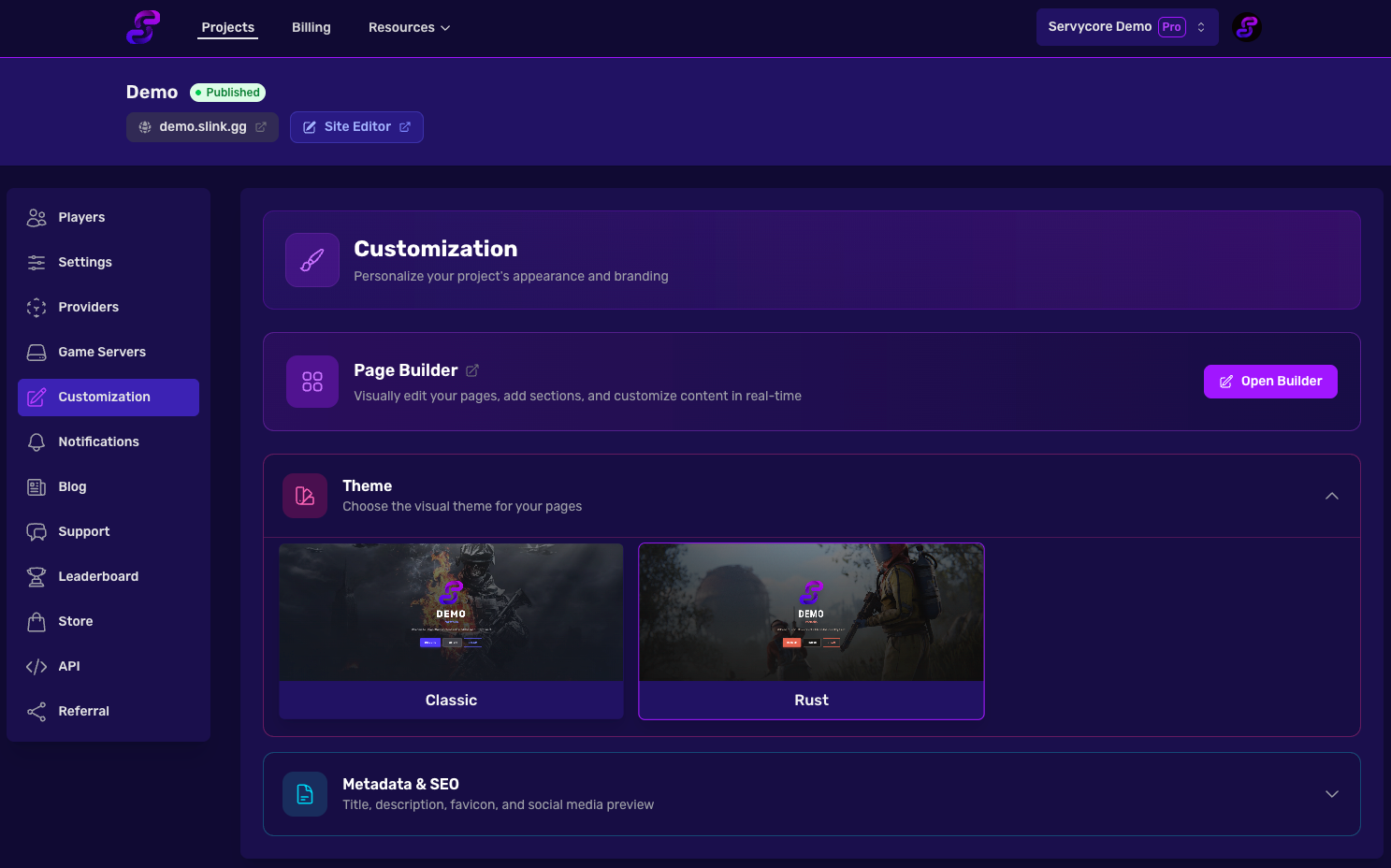
From your project's panel, you'll find the Customization tab in the sidebar. You can also quickly access the Site Editor using the Site Editor button at the top of the project card on the Projects page.
Editor Settings
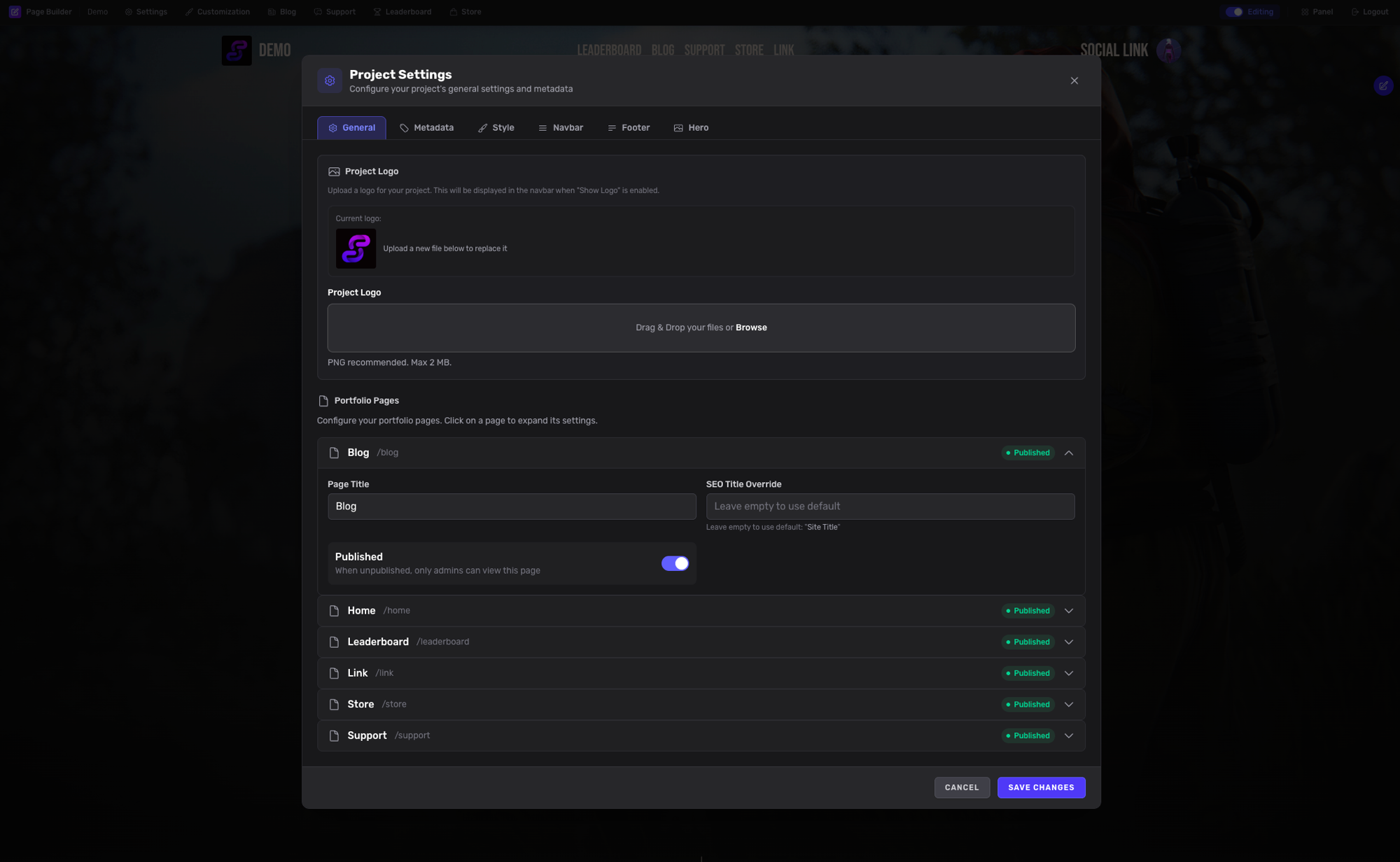
The editor lets you customize the key elements displayed on your portfolio pages: the Navbar, the Hero section, and the Footer.
Navbar Settings
| Field | Description | Character Limit |
|---|---|---|
| Navbar Title | Title shown in the navigation bar | 3-40 |
| Navbar Subtitle | Subtitle below the navbar title | 3-160 |
Hero Section
| Field | Description | Character Limit |
|---|---|---|
| Hero First Title | Main heading on the hero section | 3-120 |
| Hero Second Title | Secondary heading on the hero section | 3-120 |
| Hero Button Text | Text on the hero call-to-action button | 3-20 |
Footer
| Field | Description | Character Limit |
|---|---|---|
| Footer Text | Text displayed in the footer | 3-120 |
Social Links
| Field | Description |
|---|---|
| Main Site URL | Link to your main website |
| Discord Invite URL | Your Discord server invite link |
| Steam Group URL | Your Steam group page URL |
| Twitch Channel URL | Your Twitch channel URL |
You can also customize the button labels for Discord, Steam, and Twitch links.
Logo
Upload a custom logo for your project (JPEG, PNG, or GIF, max 2MB).
Custom CSS
Custom CSS comes with the Basic plan and higher.
Add your own CSS to further customize the look of your pages. Navigate to Panel > Your Project > Customization > Custom CSS.
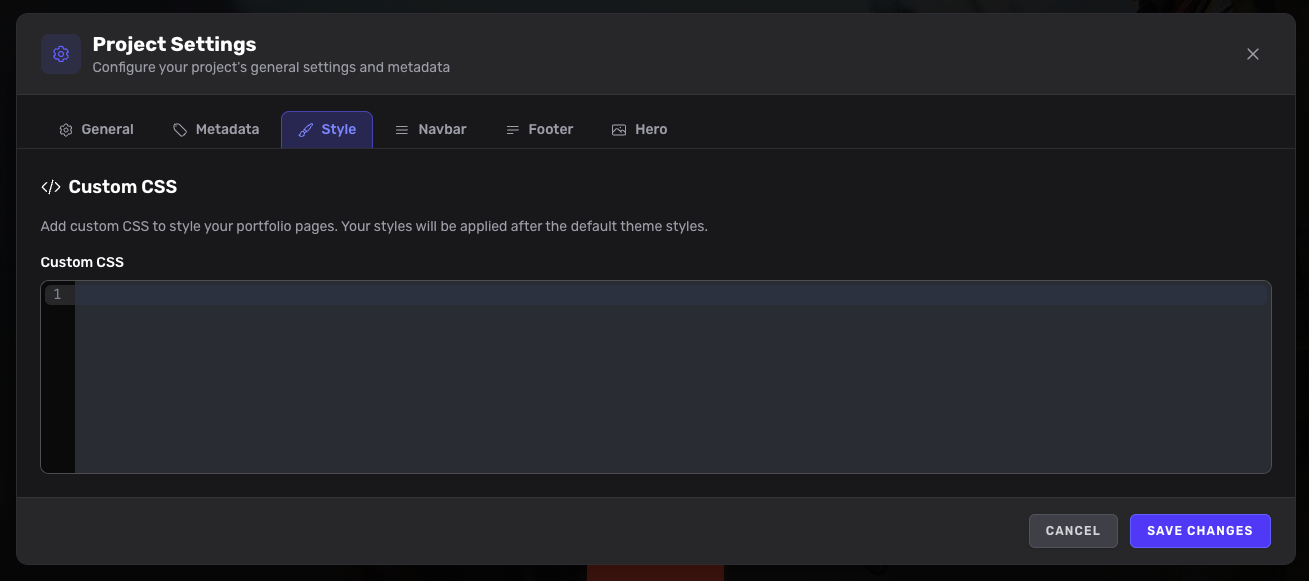
Custom CSS is injected after the theme's default styles, so your rules take priority. This is useful for fine-tuning colors, spacing, fonts, and other visual details beyond what the editor provides.
Choosing a Theme
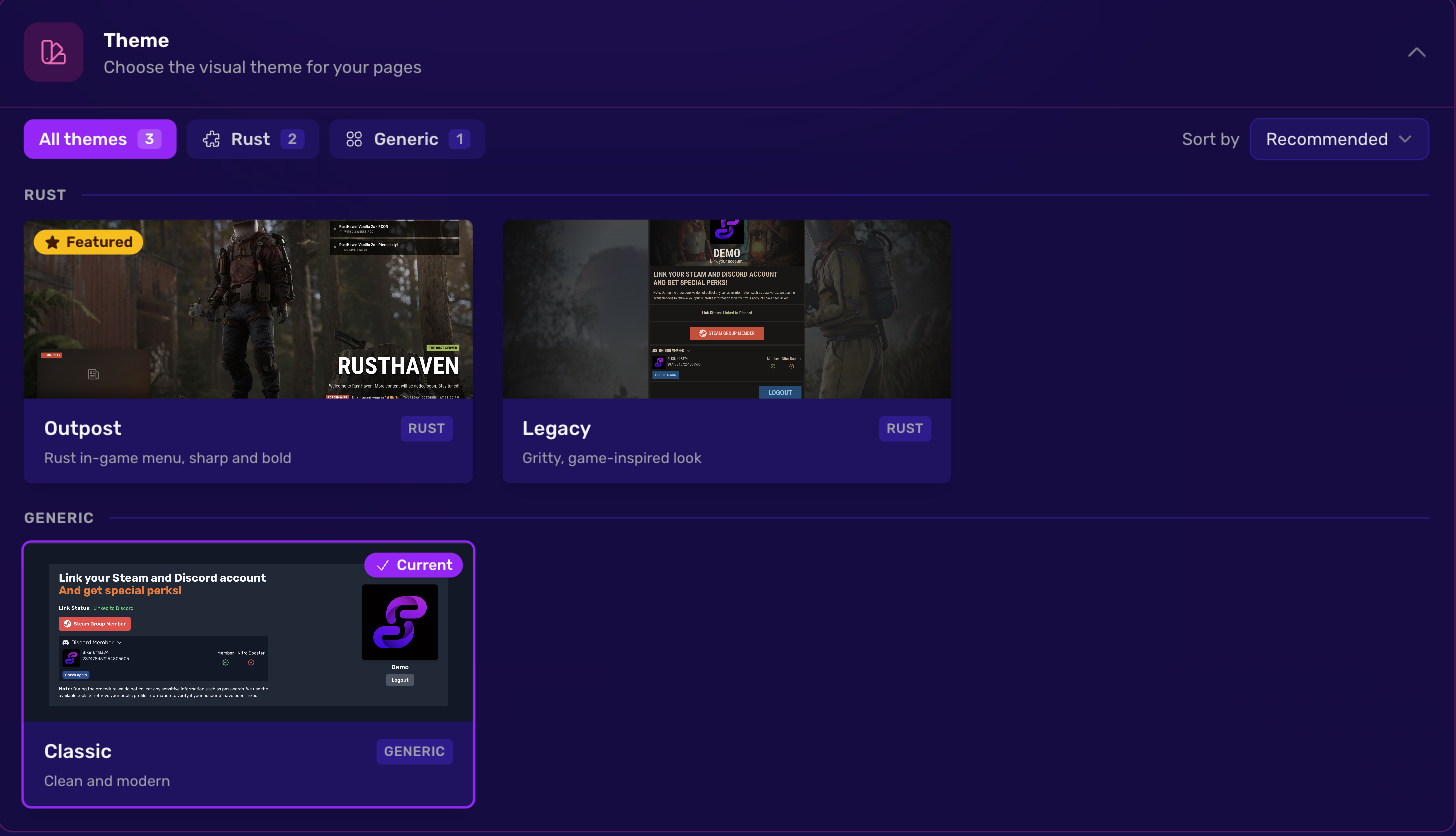
Navigate to Panel > Your Project > Customization > Theme to browse and select a theme. Themes are available for both portfolio pages and link pages. Each theme has a preview so you can see how it looks before applying it.
Themes are grouped by category: Generic themes work for any community, game themes are designed for a specific game. Use the category tabs to filter the list and the Sort by menu to order it (recommended, name, newest).
| Theme | Category | Style |
|---|---|---|
| Classic | Generic | Clean and modern, rounded cards |
| Legacy | Rust | The original Rust theme: gritty, game-inspired look |
| Outpost ★ Featured | Rust | Inspired by the Rust in-game menu: sharp translucent panels over a full-screen game scene, live server list, latest news and a countdown to the monthly forced wipe on the home page |
Your hero follows you when you switch themes: the new theme starts from your current title, texts, buttons and images, and each theme then keeps its own copy. With Outpost, the hero background image you upload is used as the background of every page.
Home Page Hero
Open the Site Editor, then the pencil button on the hero (or Settings > Hero).
| Setting | Description |
|---|---|
| Title / Subtitle / Description | Texts of the hero. Leave the subtitle or description empty to hide them; an empty title shows your project name |
| Height | Full screen, Large (your first section stays visible, default for new projects) or Compact |
| Content alignment | Centered or Left (not available with Outpost, which places its hero like the Rust main menu) |
| Images | Background (1920x1080 or larger) and logo |
| Call-to-Action Buttons | Up to 4 buttons. Use a page path such as /store or /link, a full URL, or a steam://connect/... link. Buttons leading to a page your plan or project mode does not include are hidden from visitors |
New projects come with ready-made home and link pages (highlights, a three-step guide, a FAQ and a closing call to action) that adapt to the colours of the selected theme. Edit or delete any block in the Site Editor.
Metadata & SEO
Navigate to Panel > Your Project > Metadata to configure SEO settings.
| Field | Description |
|---|---|
| Title | Page title for search engines (3-35 characters) |
| Description | Meta description for search results (3-160 characters) |
| Theme Color | Browser theme color (hex format, e.g., #ffffff) |
| Favicon | Custom favicon image (1:1 ratio, max 2MB) |
| OG Image | Social sharing preview image (max 2MB) |
Custom metadata is included in every plan. On the Free plan, "· Powered by Servycore" is added at the end of the description.
Notes
- Theme changes take effect immediately
- Custom CSS is injected after the theme's default styles, so your rules take priority
- Metadata changes may take time to reflect in search engines
- For advanced page layout customization, see Site Editor & Page Builder