Categories help you organize support tickets by type. Each category can define custom form fields that players must fill in when creating a ticket — for example, a "Cheater Report" category can ask for the cheater's Steam ID.
Creating a Category
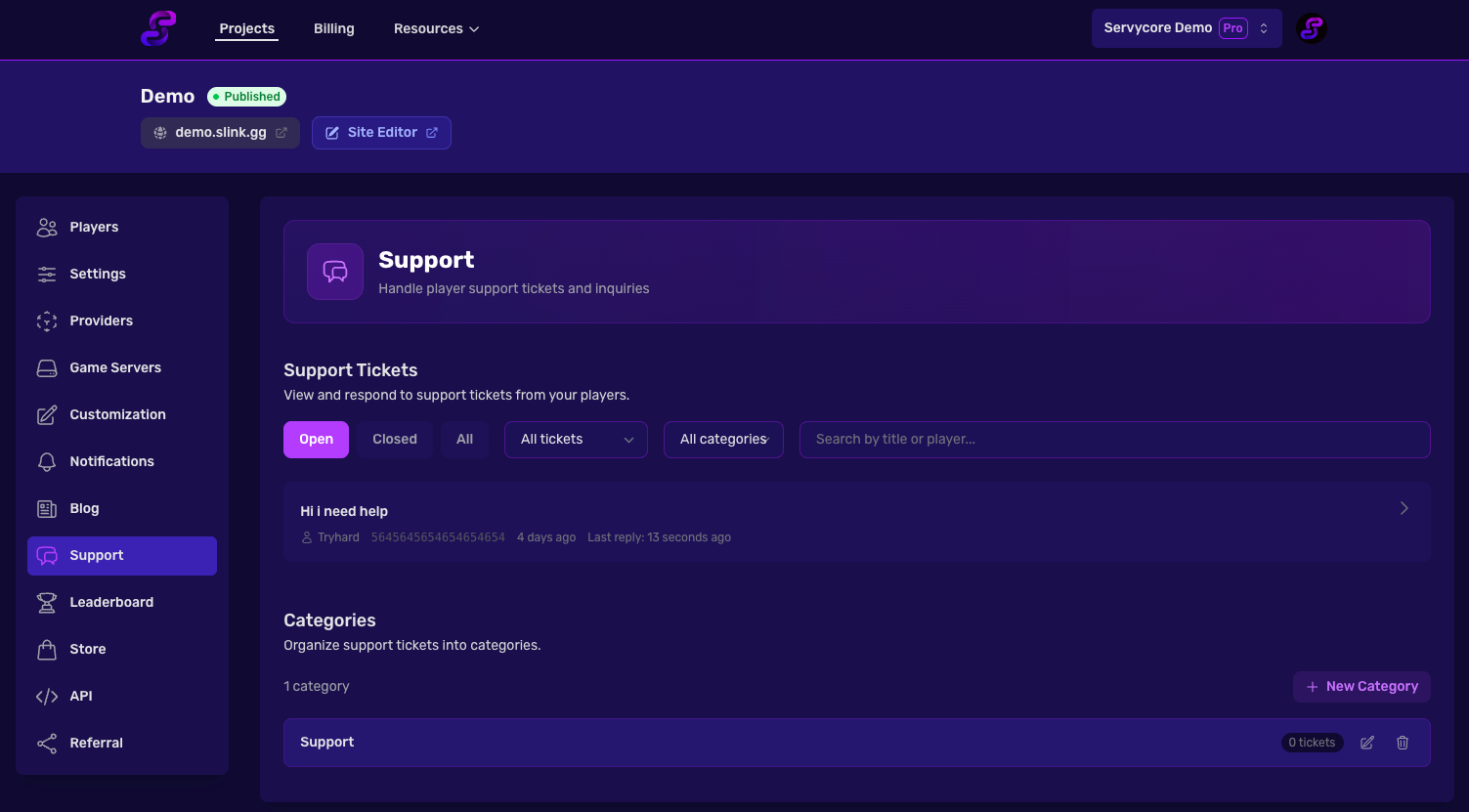
Navigate to Panel > Your Project > Support and click the Add Category button.
Each category has:
- Name — The display name (e.g., "Cheater Report", "Bug Report", "General Question")
Adding Custom Fields
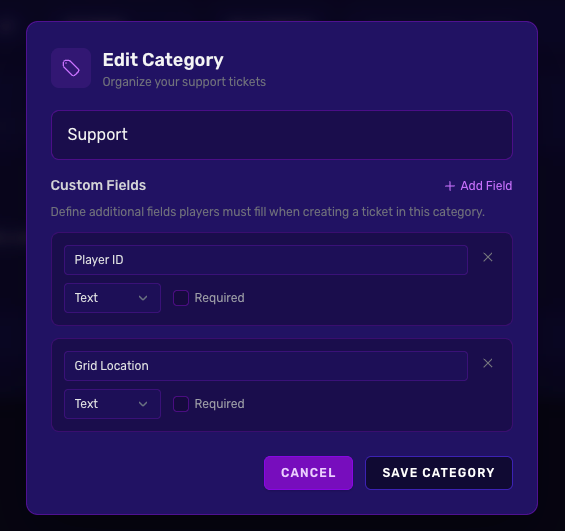
When creating or editing a category, you can add custom form fields. These fields appear in the ticket creation form when a player selects that category.
Click Add Field to create a new field. Each field has:
| Setting | Description |
|---|---|
| Label | The field name shown to the player (e.g., "Cheater Steam ID") |
| Type | Text for a single line, or Textarea for multi-line input |
| Required | Whether the player must fill in this field |
The field key is auto-generated from the label (e.g., "Cheater Steam ID" becomes cheater_steam_id).
Example: Cheater Report Category
Here's how to set up a "Cheater Report" category:
- Click Add Category
- Set the name to Cheater Report
- Click Add Field and configure:
- Label: Cheater Steam ID
- Type: Text
- Required: Yes
- Save the category
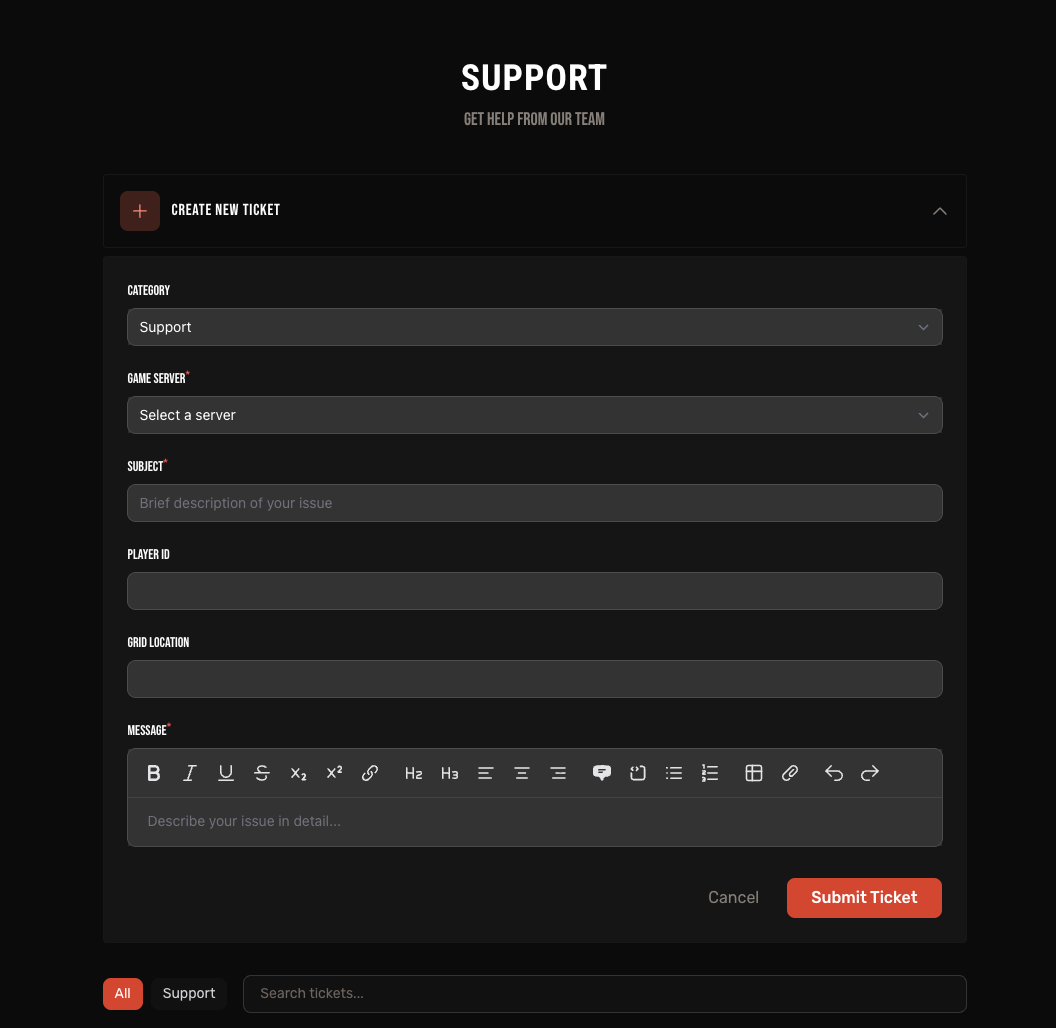
When a player selects "Cheater Report" as the category, they will see the additional fields in the ticket form.
Example: Staff Applications
Recruit moderators with a Staff Application category: add the fields Age, Hours on Rust, Timezone (Text) and Why do you want to join the staff? (Textarea). Each application becomes a ticket your team answers in the same place, and you can link to the support page from a button on your website. Accepted? Give the player a trial group from Control Center → Staff & VIP groups, with an end date.
Field Types
Text
A single-line text input, up to 255 characters. Use this for short values like Steam IDs, player names, or transaction IDs.
Textarea
A multi-line text area. Use this for longer descriptions, such as steps to reproduce a bug or additional context.
How Custom Fields Appear
When a player selects a category with custom fields, the additional fields appear in the ticket creation form between the subject and message fields.
Once the ticket is submitted, the custom field values are visible in the Ticket Context section of the ticket detail view under Additional Info.
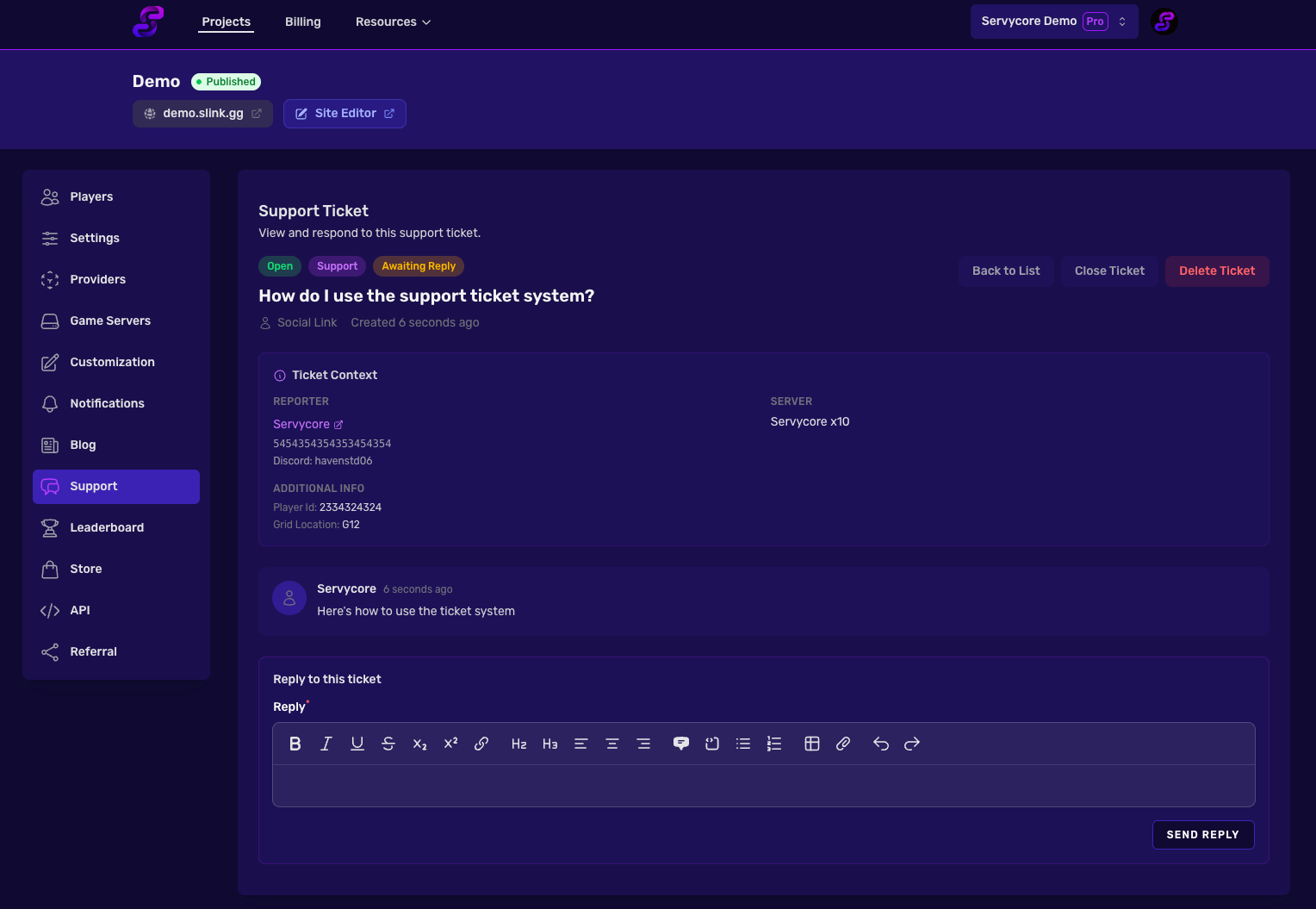
The server field is resolved to the server name automatically. If a server is later deleted, it displays "Deleted Server" instead.
Notes
- Categories without tickets can be deleted freely
- Categories with existing tickets cannot be deleted — you must delete or reassign the tickets first
- Custom field values are also available via the API as
custom_fieldson the ticket resource (see API Getting Started) - Players creating tickets from the Discord bot will also see the custom fields