Included in every plan, Free too.
The support system lets your players create tickets directly from your project's portfolio or via the Discord bot. As an admin, you can manage, reply to, and resolve tickets from the panel.
Accessing Support
Navigate to Panel > Your Project > Support to view and manage all tickets.
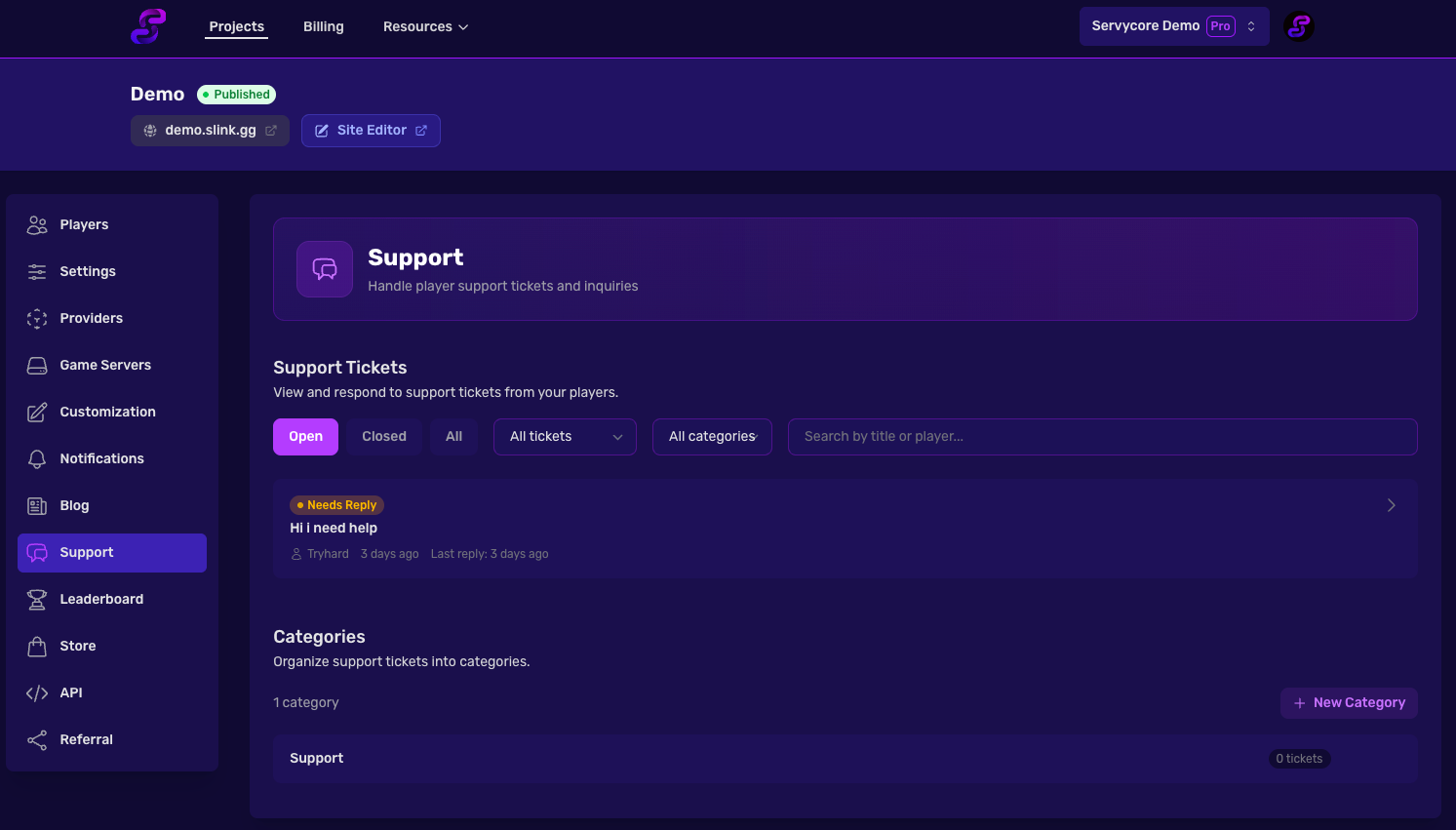
Ticket Overview
Each ticket displays:
- Title — The subject of the ticket
- Player — The Steam name of the player who created it
- Category — The assigned category
- Status — Open or Closed
- Needs Reply — An indicator when a ticket is open and unanswered
Filtering Tickets
You can filter tickets by:
| Filter | Options |
|---|---|
| Status | Open, Closed, All |
| Answer Status | All tickets, Unanswered only, Answered only |
| Category | Any configured category |
| Search | Search by title or player name |
Replying to Tickets
Click on a ticket to open the conversation view. You can:
- Reply with a rich text editor that supports file attachments
- Close the ticket when the issue is resolved
- Reopen a closed ticket if needed
- Delete the ticket permanently
Managing Categories
From the support page, you can create categories to organize tickets (e.g., "Bug Report", "Question", "Billing"). Each category has a name, an auto-generated slug, and optional custom form fields.
You can add custom fields to categories (like a cheater's Steam ID or a server selector) that players must fill in when creating a ticket. See Categories & Custom Fields for details.
Categories with existing tickets cannot be deleted.
How Players Create Tickets
Players can create support tickets in two ways:
- From the portfolio — On your project's support page, players fill in a category, title, and message
- From Discord — Using the
/support createcommand in your Discord server
Notes
- Support ticket notifications can be sent to Discord via webhooks (see Discord Webhook Notifications)
- Players can also reply to and list their tickets via the Discord bot
/supportcommand - Tickets track the last reply time for easy prioritization