Commands are the core of Servycore's automation. When a player links or unlinks their account, Servycore automatically executes commands on your game servers.
Prerequisites
- A connected game server (see Connecting Your Game Server)
- Commands enabled in your project settings
How Commands Work
Commands are triggered based on two events:
| Type | When It Fires |
|---|---|
| Auth (Authentication) | When a player meets the provider condition (e.g., joins your Discord, follows on Twitch) |
| Deauth (Deauthentication) | When a player no longer meets the condition (e.g., leaves your Discord, unfollows on Twitch) |
Adding Commands
Navigate to Panel > Your Project > Servers > [Your Server] > Commands and click Add Command.
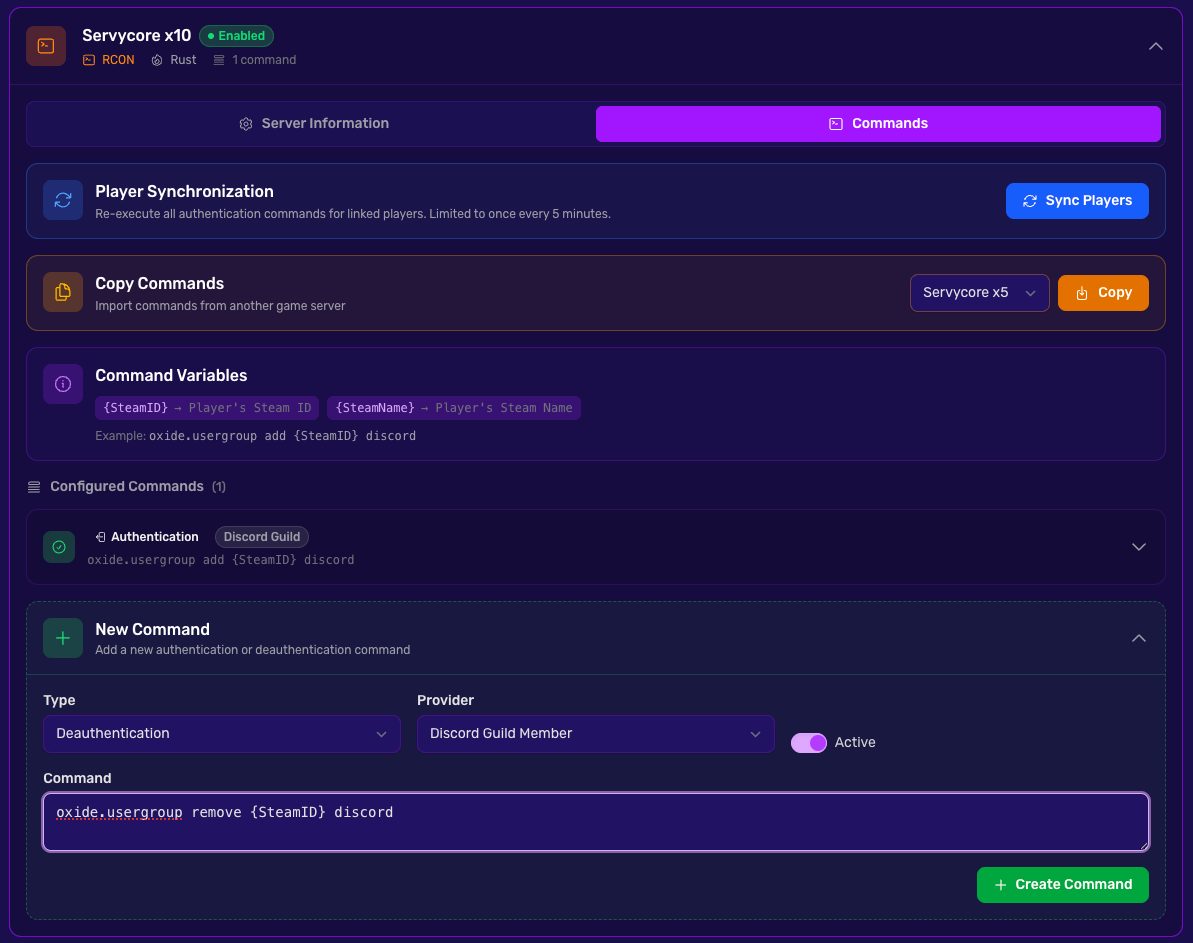
Command Settings
| Field | Description |
|---|---|
| Active | Toggle to enable or disable this command |
| Type | Authentication (auth) or Deauthentication (deauth) |
| Provider | The account provider that triggers this command |
| Command | The command to execute on the server (max 450 characters) |
Available Providers
| Provider | Description |
|---|---|
| Steam Group Member | Triggers when player joins/leaves your Steam group |
| Discord Guild Member | Triggers when player joins/leaves your Discord server |
| Discord Guild Nitro | Triggers when player starts/stops boosting your Discord server |
| Twitch Follower | Triggers when player follows/unfollows your Twitch channel |
| Twitch Subscriber | Triggers when player subscribes/unsubscribes to your Twitch channel |
Command Variables
You can use the following variables in your commands. They will be replaced with the player's actual values when executed:
| Variable | Description |
|---|---|
{SteamID} |
The player's Steam ID |
{SteamName} |
The player's Steam username |
Example Commands
Rust - Discord Member Rewards
Auth command:
oxide.usergroup add {SteamID} discord
Deauth command:
oxide.usergroup remove {SteamID} discord
Rust - Welcome Message
Auth command:
say "{SteamName} has linked their account!"
Rust - Twitch Subscriber VIP
Auth command:
oxide.usergroup add {SteamID} twitch-sub
Deauth command:
oxide.usergroup remove {SteamID} twitch-sub
Command Events
Every command execution is logged. Navigate to Panel > Your Project > Game Servers > Command events to view the execution history; Command events of this server on a server's Linking page opens it filtered on that server. Each event shows its server, what the player did (for example "Discord Guild · On link"), the player and when it happened.
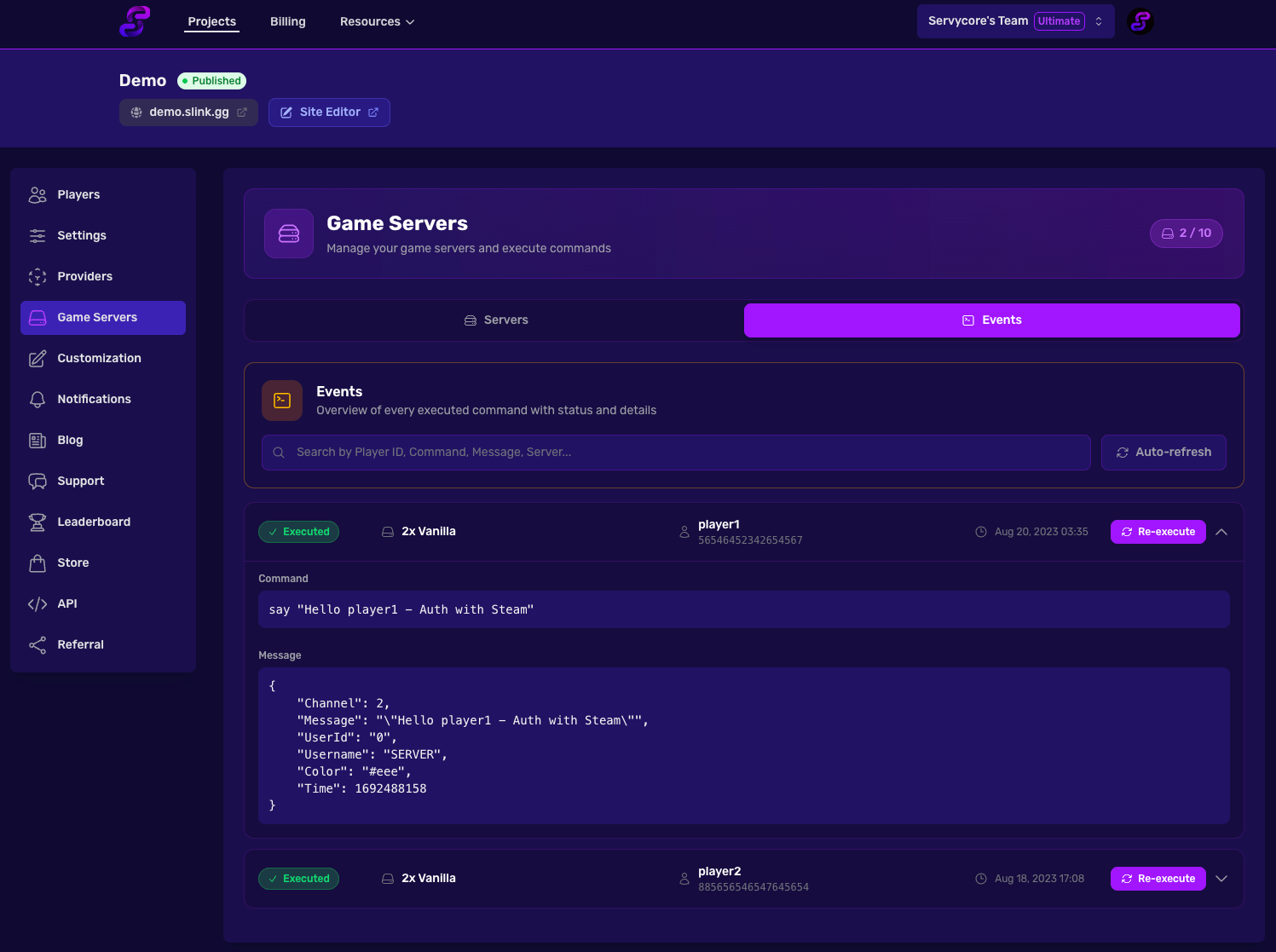
Narrow the list with the filters. Each one takes several values, and you can combine them:
- Server: one or more of your game servers.
- Event: what made the command run, for example "Steam Group · On unlink".
- Status: Executed, Failed, Awaiting, Waiting for join.
- Date: a preset (Today, Last 7 days, Last 30 days, This month, Last month) or a range: click the first day, then the last one. Both days are included.
The filters stay in the address of the page, so you can bookmark or share a filtered list. Clear filters shows everything again. The search field also finds events by command text, player name, Steam ID, Discord ID, Twitch ID or game server name.
The events of one player
Open the player from Players: their page has a Command events tab (or section) with every linking command sent for their account, the same filters, and the button to send a failed one again. Only the team members who can update the project see command events.
Waiting for join (Carbon)
Carbon only knows the players who joined the server once: a c.usergroup add sent for a player who links before ever playing there is answered "Couldn't find that player.". The event then shows Waiting for join instead of Executed, and when the server is in the Control Center, Servycore sends the command again at the player's first connection (in the order they linked and unlinked).
Re-executing Failed Commands
If a command fails, you can re-execute it from the events page (up to 3 retries).
Duplicate Prevention
Servycore automatically prevents duplicate command execution. If the last command for a player on a given provider was already an auth, another auth command won't be sent again. The same applies for deauth commands.
Notes
- Commands are executed in real-time when the trigger event occurs
- During regular checking (if enabled on your plan), commands are re-evaluated for all players
- You can copy commands between servers in the same project to save setup time