The Site Editor is Servycore's advanced page builder. It gives you full control over your portfolio layout with sections, columns, and a wide range of customizable modules. Place elements exactly where you want them.
Opening the Site Editor
You can open the Site Editor in two ways:
- From the Projects list, click the Site Editor button on your project card
- From inside your project, go to Customization > Open Builder
How the Page Builder Works
The page builder uses a hierarchy of sections and columns to organize your content. Each section spans the full width of the page and contains one or more columns. Modules are placed inside columns.

Sections
Sections are the top-level containers of your page. You can:
- Add new sections to create distinct areas on your page
- Reorder sections by dragging them up or down
- Delete sections you no longer need
Columns
Each section is divided into columns. You can adjust the column width to control how much horizontal space each column takes. This lets you create layouts like:
- Full-width single column
- Two equal columns (50/50)
- Sidebar layouts (30/70, 70/30)
- Three columns (33/33/33)
Modules
Modules are the content blocks that go inside columns. Each module is fully customizable and can be repositioned freely within and across columns.
Adding Modules
Click the Add Module button to see the full list of available modules.
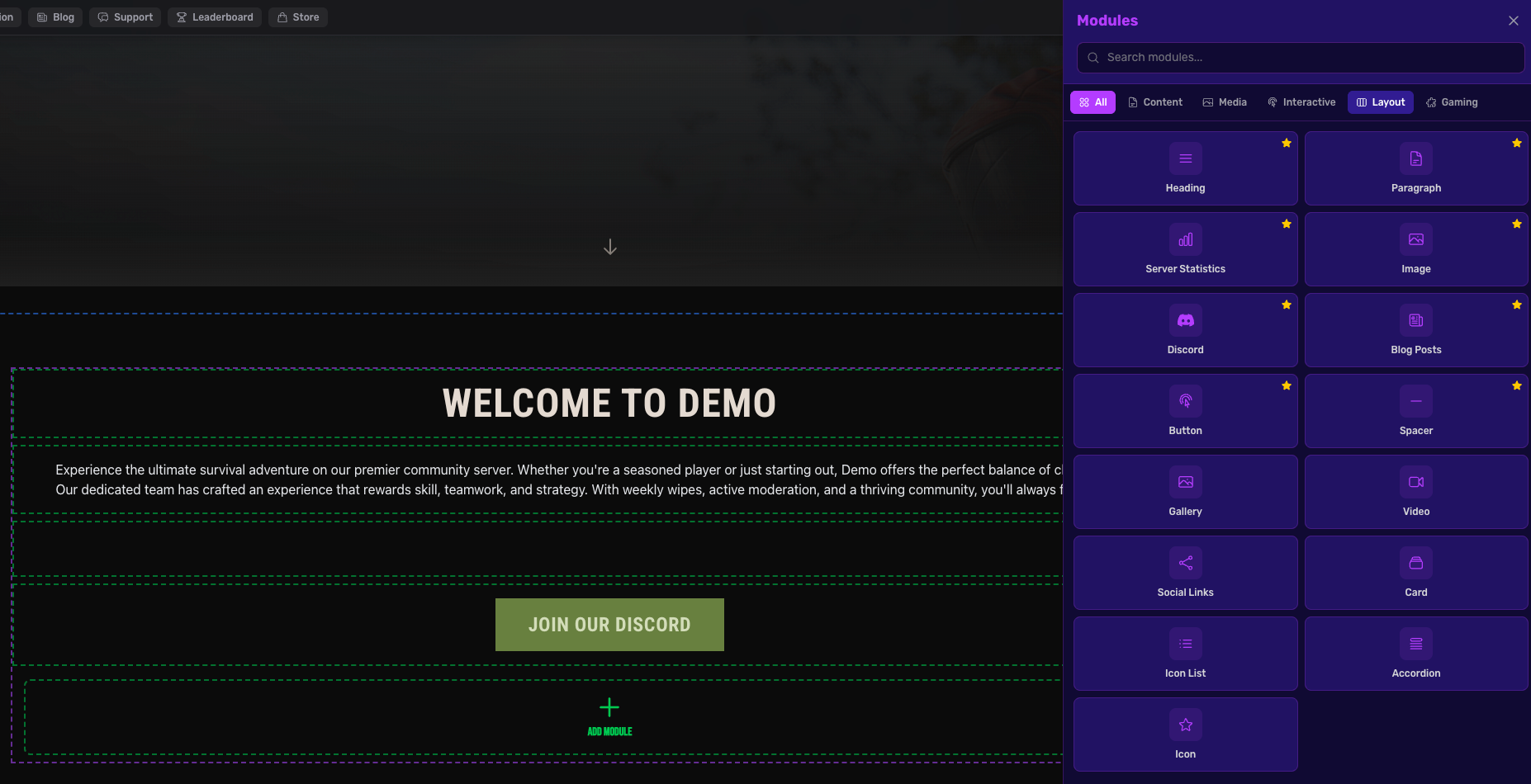
Available Modules
| Module | Description |
|---|---|
| Heading | Section titles and headers |
| Paragraph | Text content blocks |
| Image | Image displays |
| Button | Clickable buttons with links |
| Gallery | Image gallery grid |
| Video | Embedded video players |
| Social Links | Social media link buttons |
| Card | Content cards with image and text |
| Icon List | Lists with icons |
| Accordion | Collapsible FAQ-style sections |
| Icon | Standalone icon display |
| Server Stats | Live server statistics |
| Spacer | Vertical spacing between sections |
| Linking | Account linking widget |
| Discord | Discord server widget |
| Blog Posts | Recent blog posts display |
| Ban List | Active bans of your network or of one server (Control Center) |
| Server Map | Current map of a Rust server (seed, size, wipe dates, link to RustMaps for procedural maps) and the maps of the previous wipes. The image comes from the Control Center (rendered after each wipe, host access needed) or from the leaderboard plugin. No player positions. Visible to visitors while your plan includes the Control Center |
| Vote | Vote buttons and the top voters of the month (rust-servers.net) |
Editing a Module
To customize a module, hover over it and click the edit icon button that appears. This opens the module editor where you can configure all of its properties.
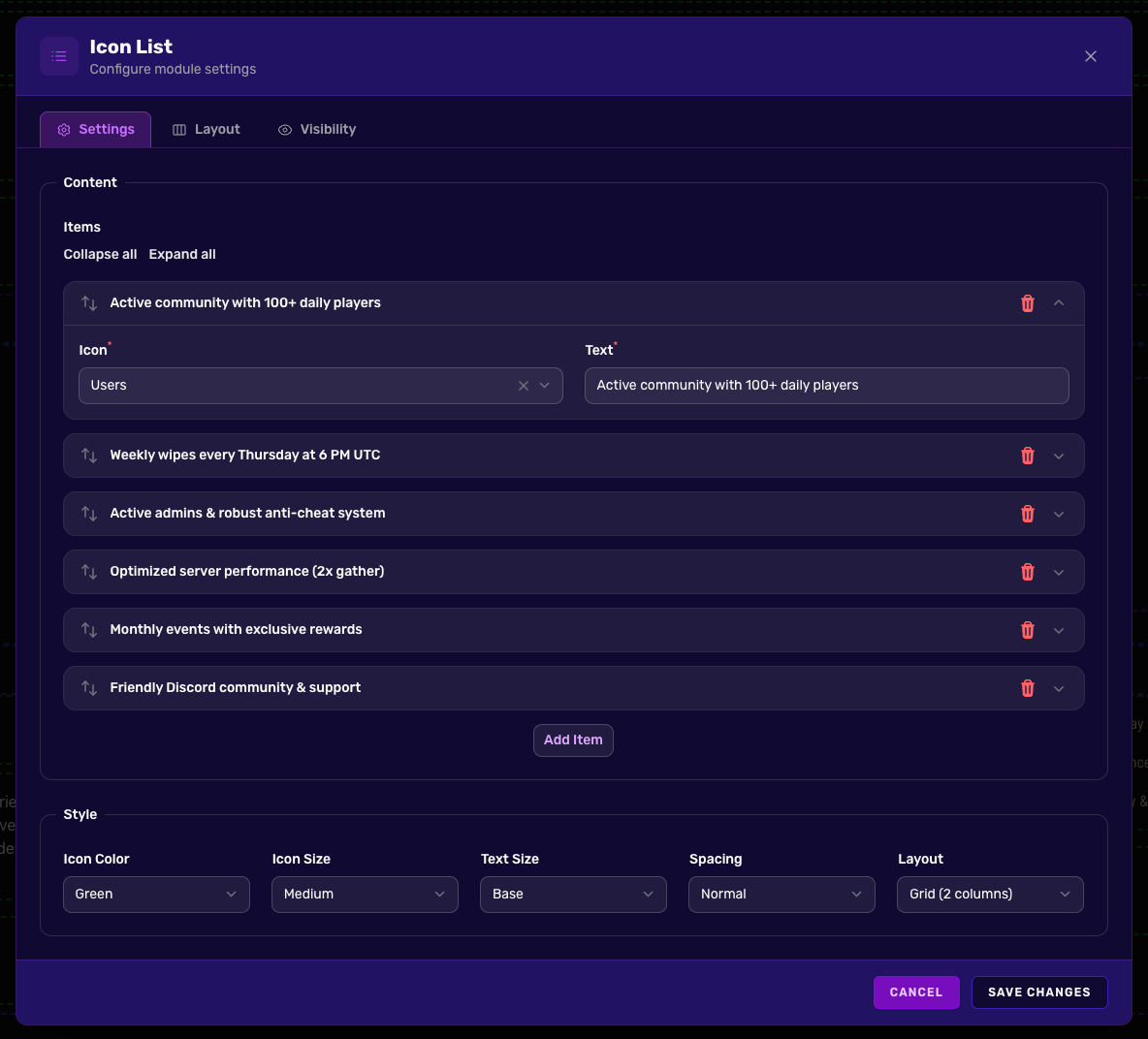
Each module type has its own set of configurable fields. For example:
- Heading: text content, font size, alignment, color
- Image: source URL, alt text, size, border radius
- Button: label, link URL, style, color
- Card: image, title, description, link
Available Fonts
Choose from 17 fonts for your portfolio: Sans-serif (default), Serif, Rubik, Bebas Neue, Monospace, Inter, Roboto Condensed, Open Sans, Lato, Montserrat, Poppins, Raleway, Playfair Display, Merriweather, Courier, Georgia, and Times.
Tips
- Start with sections to define your page structure, then fill in columns and modules
- Use the column width controls to create asymmetric layouts
- Drag and drop modules between columns to reorganize content
- Preview your changes by visiting your project's public URL
- Combine the Page Builder with Custom CSS for even more control