Servycore supports two connection methods to execute commands on your game servers. Choose the one that best fits your setup.
Prerequisites
- An active Servycore project
- Access to your game server's configuration
Adding a Game Server
Navigate to Panel > Your Project > Game Servers and click New Game Server.
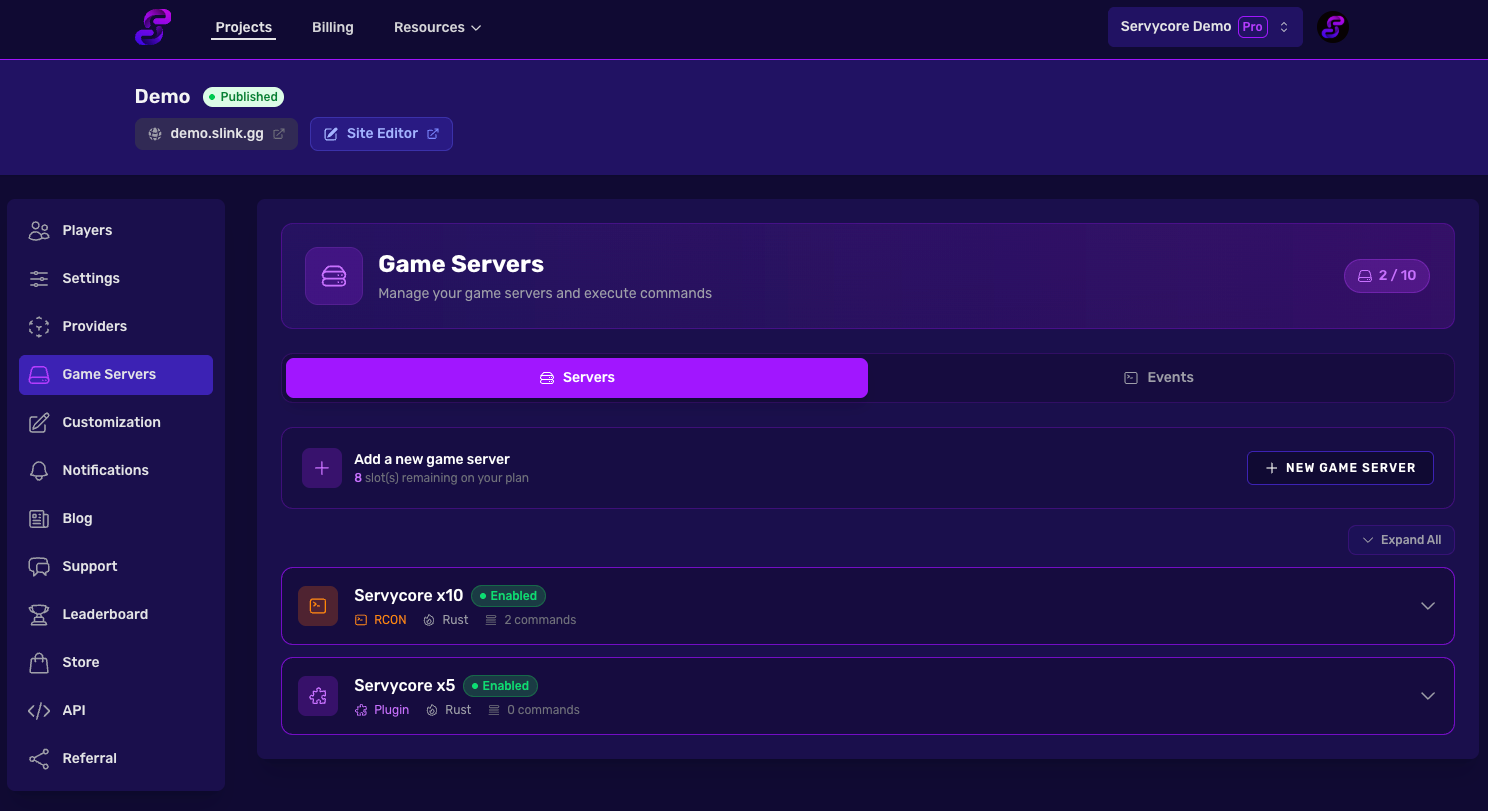
Pick the game first (Rust, ARK, Garry's Mod, CS:GO or 7 Days to Die), enter a name (3-60 characters) and click create. A Rust server is created with its RCON: type the server IP or host, the RCON port and the RCON password, and Servycore tests them. A refused password creates nothing (after two refusals for the same address, wait 10 minutes: Rust bans an IP that fails five times); a server that does not answer yet (off, or its firewall not open to Servycore) is created anyway, with a warning. You land on the server's Connection tab.
Every server has a Configuration page with these tabs, and a Linking page. On a Rust server of the Control Center, Linking and Configuration sit under the server in the menu; on other servers, Linking is a tab of the Configuration. The Linking page has two tabs: the server's Linking commands (below), and your Website link page, the same for every server: which accounts players link (Discord members and boosters, Steam group, Twitch followers and subscribers), their order and button labels, classic or step-by-step, and the texts. No need to open the Site Editor for it.
- Connection: the only place where you type how Servycore reaches your server (server address and query port for your website statistics, RCON, Pterodactyl panel). RCON is the remote access to your server's console: your host gives it in its panel, often in Startup (the RCON port and password). On a Rust server of the Control Center, this tab shows three numbered steps, the next one highlighted: RCON (the Control Center itself), host access (Pterodactyl, Pelican, WISP, AMP, SFTP or FTP: plugins and files; with a panel, automatic wipes and backups) and the Servycore plugin (kill feed, events, rendered map). Every step can be skipped and done later; the Control Center home reminds you of the steps left and what they unlock, until you hide that reminder.
- Settings: name, game, and how the linking commands reach the server: RCON (the connection of the Connection tab), the only method for Rust, or Pterodactyl (the panel of the Connection tab) for the other games.
- Linking (its own page): what runs when a player links or unlinks an account, as one table per provider (On link commands first, then On unlink). Tick commands (one by one, a whole provider, or Select all) to switch them on or off or delete them together; the switch of a row turns one command on or off, the pencil edits it in place. Each row shows its last result (when it last ran, or why it failed, such as a group missing on the server) and warns when a command is written for the other framework (an
oxide.command on Carbon, ac.command on Oxide). On a Rust server of the Control Center, each player who joins also gets what this server missed for them: the link commands they never got here (a new server, commands added later, a command that failed while the server was down or before you created its group), and the unlink commands of an account they unlinked meanwhile. No need to sync the whole community. A link command for a group that does not exist on the server shows Failed: create the group, it runs again at the player's next join.
What a new Rust server comes with
When you create a Rust server from scratch (nothing in Start from), it is ready to use, and nothing runs until you switch it on:
- a wipe schedule that follows the monthly forced wipe (map + blueprints), with the auto-wipe system off;
- the three Discord wipe announcements (1 hour before, wipe starting, just wiped) on your Wipe Announcements channel. They post once that channel is set and switched on in Notifications; "Just wiped" also goes out when your host wipes the server;
- a daily restart and a welcome message, switched off in Automations (switched-off automations do not count toward your plan);
- the usual linking commands (
usergroup add/removefor the providers your project uses), added at the first RCON connection, once Servycore knows whether the server runs Oxide or Carbon. Commands you write yourself before that are kept, and nothing is added.
Start from an existing server
When your project already has a Rust server, the Start from list copies its setup to the new server in one go:
- its linking commands (the players already linked get them at their next connection to the new server);
- its server groups (so the automations and settings of those groups apply);
- its wipe schedule, copied turned off: turn it on once the new server is connected;
- the automations picked for that server (network and group automations already cover the new server).
Connection settings and the server listing (description, links, images, tags) are not copied: the listing is stored on the game server itself, so copy it with Copy to… once RCON is set. Staff roles and groups given on Every server reach the new server by themselves within a minute of it being connected.
Connection Types
RCON
RCON (Remote Console) allows Servycore to send commands to your game server remotely. This works with multiple game types.
Supported Games:
- Rust
- Ark: Survival Evolved
- Garry's Mod
- Counter-Strike: Global Offensive
- 7 Days to Die
Configuration:
| Field | Description |
|---|---|
| RCON IP | The IP address of your game server |
| RCON Port | The RCON port (1-65535) |
| RCON Password | Your server's RCON password (max 100 characters) |
Optional fields:
| Field | Description |
|---|---|
| Server IP | Public IP or domain for display purposes |
| Query Port | Server query port (1-65535) for status checks |
These fields are in the server's Connection tab. Choosing RCON in Settings sends the linking commands through that connection (on Rust, the same one as the Control Center, and the only method: there is no choice to make in Settings).
Pterodactyl
Pterodactyl connection works for ARK, Garry's Mod, CS:GO and 7 Days to Die servers through the Pterodactyl Panel API. This is ideal if your server is hosted on a Pterodactyl instance. Rust servers send their linking commands over RCON: on Rust, your Pterodactyl panel is the host access of the Connection tab (automatic wipes, files, backups, restarts).
Configuration:
| Field | Description |
|---|---|
| Pterodactyl Host | The URL of your Pterodactyl panel (e.g., https://panel.example.com) |
| Server ID | The server identifier in your Pterodactyl panel |
| API Token | A client API token from your Pterodactyl account (max 1024 characters) |
Server Status
Each server has a status toggle that you can enable or disable. Disabled servers won't receive any commands.
Syncing Accounts
You can manually sync all player accounts on a server. This re-runs authentication checks and executes the appropriate commands. This action is rate-limited to once every 5 minutes per server.
Copying Commands
When adding a new server, you can copy commands from another server in the same project. This saves time if you have multiple servers with the same command setup.
Notes
- Enabling commands on a server automatically enables the "Commands" option in your project settings
- RCON passwords are stored securely and never displayed in plain text after saving
- Pterodactyl connection doesn't require selecting a game type