How to add an in-game UI to a Rust server
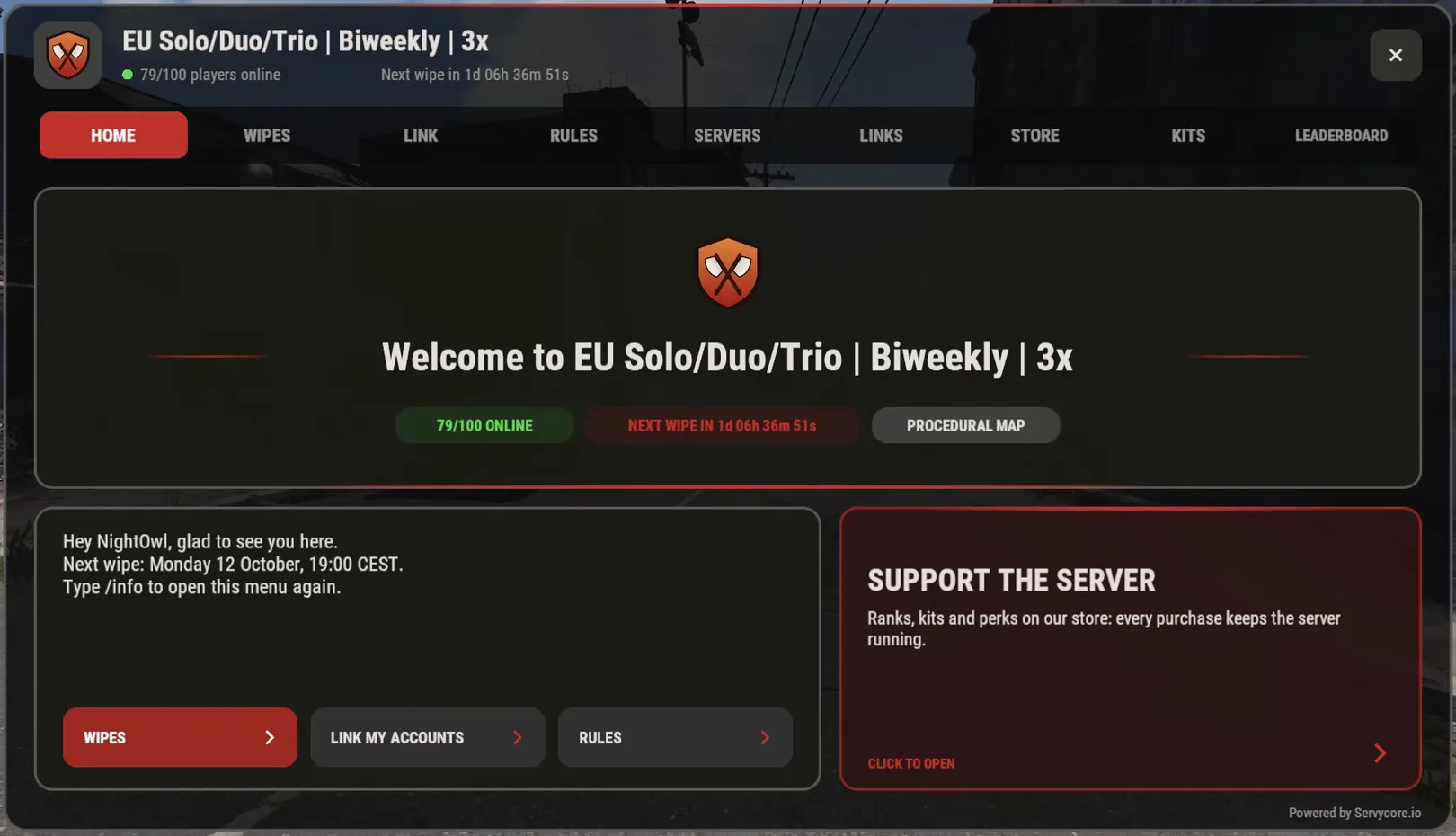
An in-game UI is the window your players open in Rust with a chat command like /info: your server's info, the next wipe, the rules, account linking, your store and your kits, without leaving the game. Server owners call it a welcome panel, an info panel, a server panel, an info UI or an in-game menu; it is all the same thing. A plugin on your server draws it, so your server needs Oxide or Carbon, and Facepunch's rules say it must be listed Modded. This guide covers what to put in it, how to make players actually use it, and the traps of Rust UIs.
How an in-game UI works in Rust
Rust lets server plugins draw windows on the player's screen. The plugin sends the window as a description of panels, texts, images and buttons, and the game draws it: players install nothing. Rust's community calls this system CUI.
Two consequences matter when you plan your panel:
- It needs a plugin. You need Oxide (uMod) or Carbon, then a plugin that draws the UI. Not sure which framework you run? See Oxide vs Carbon.
- It makes your server Modded. Facepunch's server rules forbid plugins that show an in-game UI (logos, info panels, loading messages) on servers listed Community; kits and stores count too, through a custom UI or an external storefront. Oxide and Carbon list your server as Modded by default. If you switched that off (
"Modded": falseinoxide/oxide.config.json,"IsModded": falseincarbon/config.json), turn it back on before you add a panel.
What to put in your welcome panel
A good panel answers the questions players otherwise ask in your Discord. Most Rust servers need these pages:
- Home. Your server's name, a short tagline (
EU · 2x · Solo), the players online and a countdown to the next wipe, then buttons to the other pages. Keep the welcome text to a few lines: players read it once. - Wipes. When the next wipe is, and the ones after it. Remember the forced wipe: on the first Thursday of the month every Rust server wipes its map with Facepunch's update. The Rust wipe planner shows the coming dates.
- Rules. A short numbered list: team size, what gets a player banned, how to report someone (F7). Numbers make rules easy to quote in a ticket ("rule 3").
- Account linking. What players get for linking Discord, Steam or Twitch, and where to do it. See How to link Discord to a Rust server.
- Store. Your VIP ranks and packages with their prices, if you run a store.
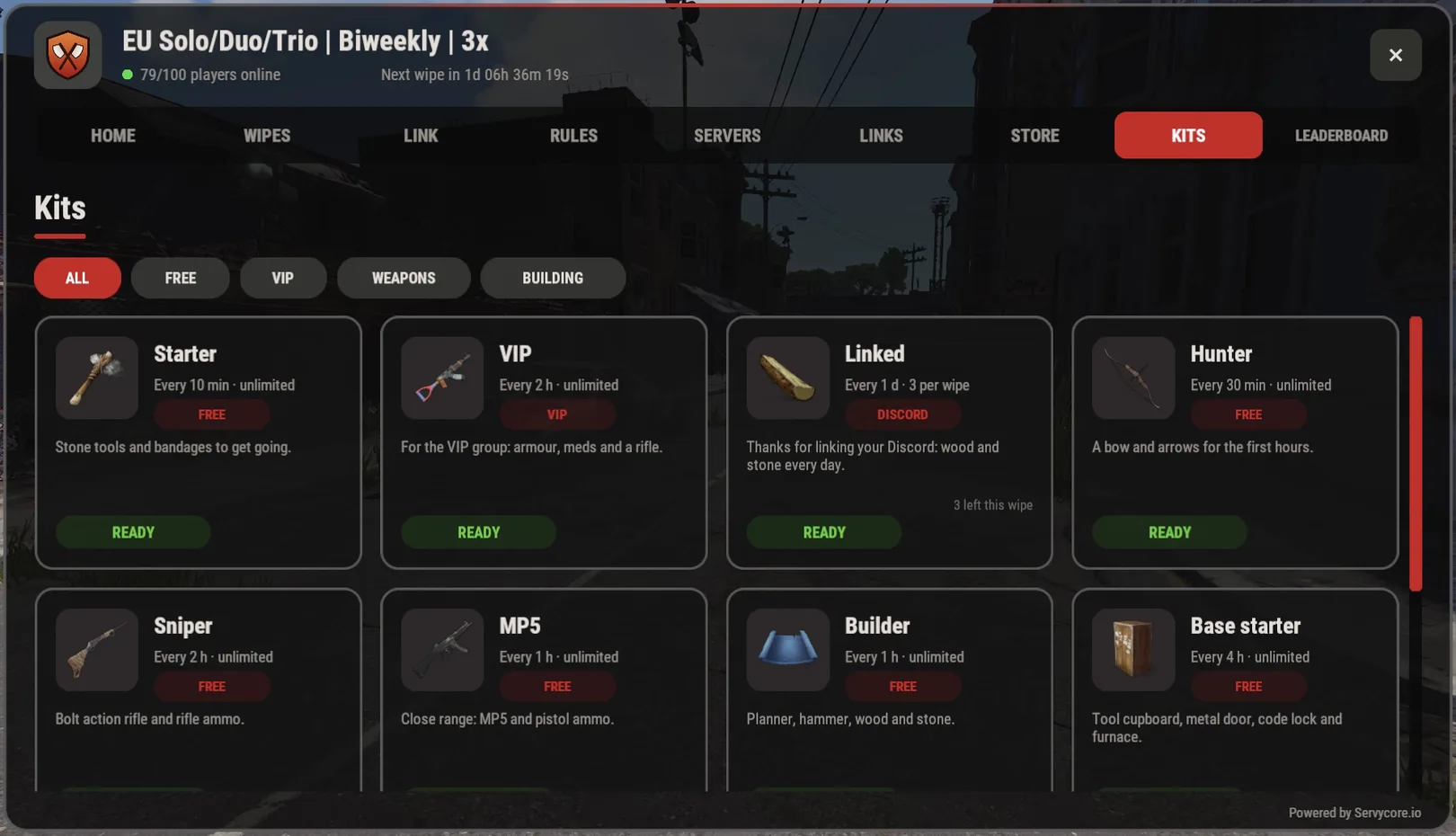
- Kits. The kits a player can claim, their cooldowns and who can claim them. See How to give VIP on a Rust server for the groups behind VIP kits.
- Servers. Your other servers with their players and the address to connect, if you run a network.
- Links. Your Discord, website and vote pages.
A leaderboard, your latest news or an event page are extras: add them when you have them, not as empty pages.
Make it easy to use
Rust's UI has limits that a web page does not. Plan around them, or players get stuck:
- Escape does not close it. In Rust, Escape opens the game's own menu and leaves your panel on screen. Always give the window a visible close button, and close it on a click outside.
- The mouse wheel does not scroll it. Inside a Rust UI the wheel does nothing: players must drag a scroll bar. Keep pages short, split long rules into two pages, and show the scroll bar when a page is longer than the window.
- It cannot open a browser. A server cannot open a website on the player's computer, and links in the chat cannot be clicked. Show each link as a QR code to scan with a phone, and as an address in a field players can select and copy with Ctrl+C.
- Give each page its own command. Players type what they expect:
/wipe,/rules,/store,/kit,/link. Each command should open the same window on its page. - Open it once, not every time. Showing the panel at a player's first connection helps new players; showing it at every connection annoys the regulars.
Chat commands another plugin already has
Your new panel will want commands that older plugins already use: /info of an old info panel, /kit of a kits plugin, /store of a shop. Two plugins cannot share a chat command:
- Oxide: the plugin loaded last takes the command and Oxide logs that it "has replaced the 'kit' chat command" of the other plugin.
- Carbon: the second plugin is refused ("Command 'kit' already exists.") and does not get
/kit.
So when the panel replaces an older plugin, remove the old one; when both must stay, give one of them another command.
Moving your kits
If kits are part of your panel and you already run uMod's Kits plugin, its kits live in oxide/data/Kits/kits_data.json (carbon/data/Kits/kits_data.json on Carbon). Move them once, check the permissions (players who have kits.vip should keep the VIP kit), then remove the Kits plugin so the two do not fight over /kit.
Keep it up to date
Most welcome panel plugins are set up with a JSON config file or an editor inside the game, on each server. That works until things change: the wipe date moves, a VIP price changes, a new server opens. Then every file on every server needs the same edit, and the panel says something wrong in the meantime.
Two habits save you there: a panel that reads live data (players online, next wipe, store prices) instead of text you typed, and trying changes somewhere first, then publishing them to every server at once.
How Servycore does it
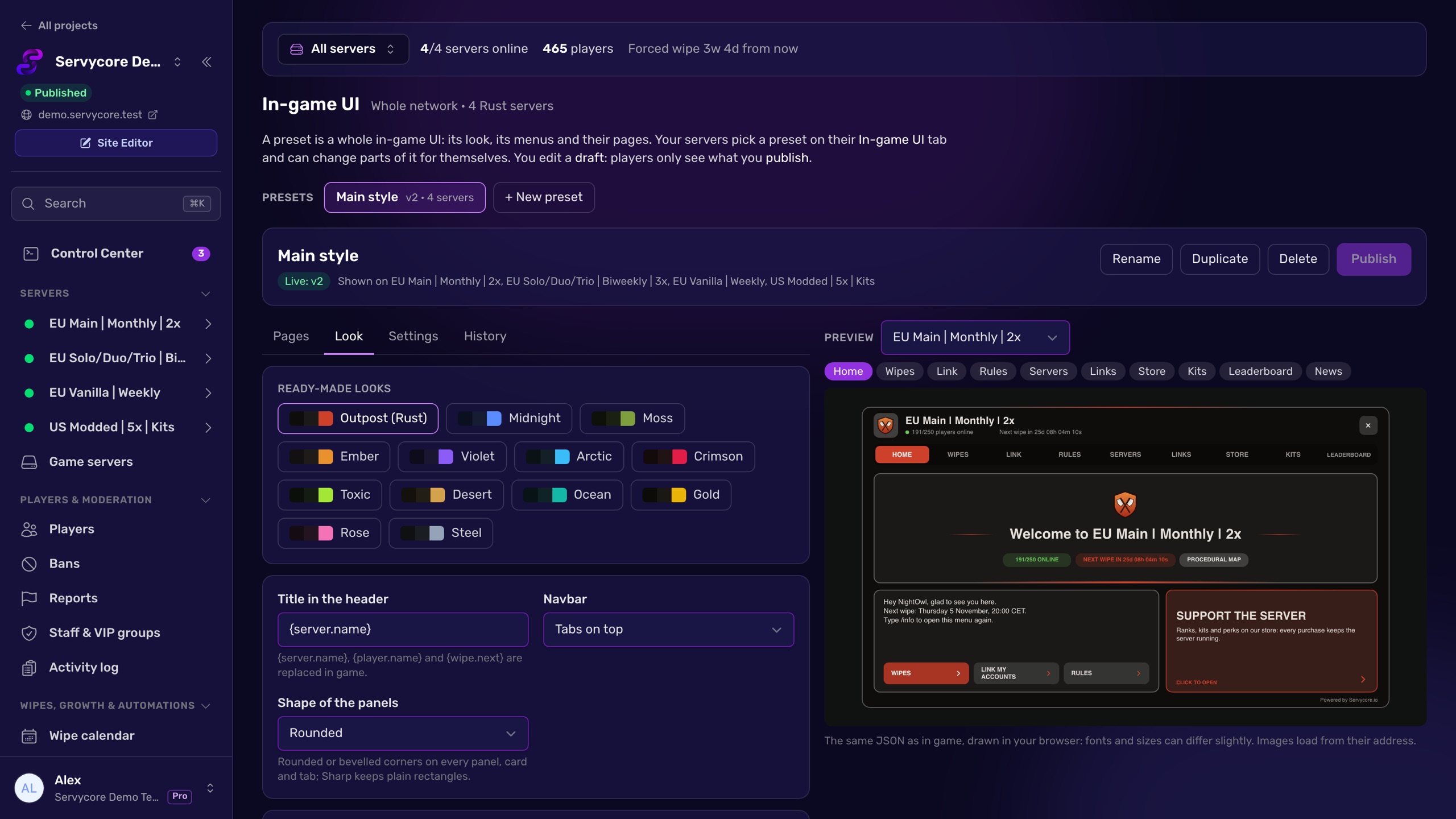
Servycore's In-game UI is a welcome panel you design in your browser and publish live, on every server:
- Designed in the panel, with a live preview: thirteen ready-made looks, your colours and logo, tabs on top or a side bar.
- Every page above is built in: home, wipes calendar (forced wipe included), account linking with each player's own accounts and rewards, rules, servers with a copyable connect command, links as QR codes, your Tebex or PayNow store, kits, the current wipe's leaderboard, your latest blog posts, and your own pages (16 pages in all).
- Several menus:
/infoopens your server pages while/storeopens a shop menu with the store and the kits, and a page can open alone, like/leaderboard. Each page has its own chat commands. - Draft and publish: you edit a draft while players keep the published version; click Publish and your servers get it within seconds. History puts an older version back in the draft.
- One menu, every server: each server shows its own name, players and wipe dates, and can change a colour or a page for itself.
- Kits that replace the Kits plugin: cooldowns, uses per wipe, a lock after each wipe, categories, Oxide or Carbon groups and permissions, kits made in game with
/kit create, and an import from uMod's Kits plugin. - Command conflicts shown before you publish: the editor tells you which plugin already has
/kitor/info, on which server. - Live data: the next wipe, players online, store prices and linked accounts come from Servycore, never from a text you have to update.
The Servycore In-game UI plugin installs in one click from the server's Plugins & Groups page, on Oxide or Carbon, with host access to the server (Pterodactyl, Pelican, WISP, AMP or SFTP). The In-game UI is in every plan, the Free one included; the Leaderboard, Store and News pages need the matching feature of your project.
FAQ
Questions people ask
Do players need to download anything to see an in-game UI?
No. Rust draws the windows a server plugin sends, so players see your panel as soon as they join. Only your server needs Oxide or Carbon and the plugin.
Does a welcome panel make my Rust server Modded?
Yes. Facepunch's server rules forbid plugins that show an in-game UI on servers listed Community, and the same goes for kits and stores, through a custom UI or an external storefront. Oxide and Carbon list your server as Modded by default.
Why doesn't Escape close my info panel?
Because Escape opens Rust's own menu and leaves plugin windows on screen. A Rust UI needs its own close button.
Can players open my website or Discord from the panel?
Not directly: a Rust server cannot open the player's browser, and chat links are not clickable. Show a QR code players scan with their phone, and the address in a field they can copy with Ctrl+C.
Why does /kit open the wrong plugin?
Two plugins want the same chat command. On Oxide the last loaded plugin takes it; on Carbon the second one is refused. Remove the plugin your panel replaces, or change one of the commands.
Can players buy from the store in game?
With a store page, players see your packages and prices in game and buy them on your store's website, through a QR code or the copied address. With Servycore, nothing is bought in game: the Store page shows your Tebex or PayNow store and sends players there.
With Servycore
Your server, in game
Design your welcome panel in Servycore with a live preview: wipes, rules, account linking, your store, kits and your own pages, in your colours with your logo. Click Publish and every server shows it within seconds.
- In-game UI in the knowledge base
Read next
-
How to give VIP on a Rust server Create a VIP group in Oxide or Carbon, give it plugin permissions and add players with usergroup add, on every server, without the usual traps.
-
How to link Discord to your Rust server Reward Discord members in game: how linking connects Discord and Steam accounts, the commands that give and remove rewards, roles and rechecks.
-
Oxide vs Carbon: which Rust modding framework? Oxide (uMod) and Carbon compared for Rust server owners: commands, folders, admin groups, plugin compatibility and how to switch between them.
-
Rust Wipe Planner Countdown to the next Rust force wipe in your time zone, your weekly or biweekly wipe days planned around it, and a calendar file for both.